Shortcuts For Mac
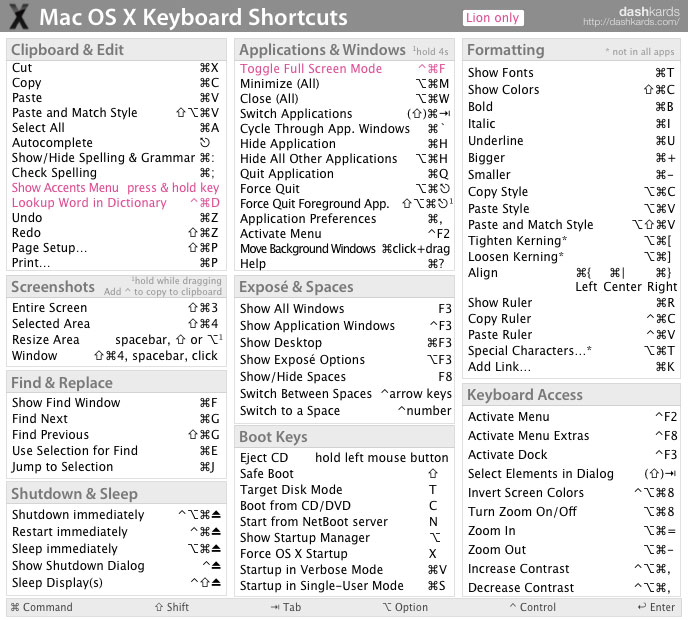
Nov 20, 2017 Humanity should be grateful for the invention of Mac hotkeys. They probably saved us thousand years of time if put together. There is something addictive in using shortcuts - the quickness, the feeling of a keyboard, the geeky confidence in your fingers when you realize “hurray it works!”. Keyboard Shortcuts This information is available directly in the RStudio IDE under the Tools menu: Tools → Keyboard Shortcuts Help. Printable Mac Keyboard Shortcut Page for macOS Sierra. There are hundreds of keyboard shortcuts for Mac users. There are Mission Control shortcuts, Finder shortcuts, system shortcuts, application shortcuts and more. Many you can find by just looking through the menu bar for that application.
A Mac’s keyboard layout just isn’t quite right for Windows. Whether you’re primarily a Windows user or primarily an OS X user, the layout doesn’t feel quite right when you run Windows in Boot Camp — but you can fix that. There are several possible ways you might want to rearrange these keyboard shortcuts depending on what you’re used to.
Bullets are the easy way to write your opinion point by point. There are many different ways to insert bullets on your Windows and Mac documents. In this article, let us explore all possible ways to insert bullets in Word, Excel, PowerPoint, Outlook and also on Pages, Keynote and Numbers.
Types of Bullets
You can use different styles of bullets for different purposes:
- Symbols – generally bullet point symbols are used for unordered list
- Numbers – use numbers for ordered list with counts
- Letters – similar to ordered list, with letters instead of numbers
- Custom images – small images in front of the sentences and aligned properly
- Font icons – generally used on web documents for showcasing
As you can see, above bullet points are useful to put our content in a simple way.
Inserting Bullets in Windows Documents
Follow one of the below instructions to insert bullets in Windows based documents.
#1 – Insert from Paragraph Group
The easy and common way is to insert a bullet from the “Home” menu under “Paragraph” group. You can choose unordered, numbered or multilevel bullet list.
If you don’t like the existing bullet options, then click on the small arrow in the bullets / numbering / multilevel list. Choose “Define New….” Option. You can choose symbol, picture or font as your bullet.
- Click on “Symbol” button to the popup showing many special symbols. Change the “Font” to Windings and find more beautiful bullet symbols for you.
- Let’s say you want to use clubs symbol used in cards suit as your bullet. Choose “Clubs” symbol from the list.
- Click OK to apply your changes.
- You will see the clubs symbol appears in the bullets dropdown.
- Choose the clubs symbol from the bullet and start using on your document.
Note: Use tab to create threaded bullets with indentation. Word will create a new bullet symbol for each indent to show it different.
#2 – AutoFormat Options
Word and PowerPoint documents has an AutoCorrect option to insert bullets automatically. For example, type 1 then . and press space to create a numbered bulleted list. Similar to numbered list, you can also use other symbols like hyphen or letters to insert bullets. For example, type hyphen and press spacebar to create a bullets with hyphen. You will see the AutoCorrect options when you type like this.
Choose “Control AutoFormat Options” to change the settings, if you don’t want Word, Outlook or PowerPoint to create bullets automatically.
Top 10 Free and Affordable Scanning Software For Mac. February 13, 2014, Editor, Leave a comment. A lot of people say that there are no free programs for Mac OS but this list of free scanning software (some are not but almost) says otherwise. Document scanning software helps you create a computer copy of any physical document. ExactScan is popular for being a modern and easy to use Mac OS X scan software with built-in drivers for over 200 document scanners, including devices from Avision, Kodak, Oki, Visioneer and Xerox. Scanner software free download - WiFi Scanner, IP Scanner, Umax Scanner Utility, and many more programs. Var bingData =. Mac users, IPs on the local network. Free User rating. Free scanner software for mac osx.
#3 – Alt Code Keyboard Shortcuts
The above two methods are the correct way to insert bullets. Because it will create bullets for each new line automatically. However, if you want to manually create bullets for few lines then you can use alt code shortcuts for this purpose. Below are some of the bullets shortcuts which you can use for typing bullets.
- Use the alt key and the decimal number keys from numeric pad.
- Alternatively, type the hex code then alt and x keys on Word documents.
| Decimal | Hex | Bullet | Description |
| Alt + 8226 | 2022 | • | Bullet |
| Alt + 8227 | 2023 | ‣ | Triangle Bullet |
| Alt + 8259 | 2043 | ⁃ | Hyphen Bullet |
| Alt + 8268 | 204C | ⁌ | Black Leftwards Bullet |
| Alt + 8269 | 204D | ⁍ | Black Leftwards Bullet |
| Alt + 8729 | 2219 | ∙ | Bullet Operator |
| Alt + 9688 | 25D8 | ◘ | Inverse Bullet |
| Alt + 9702 | 25E6 | ◦ | White Bullet |
| Alt + 9753 | 2619 | ☙ | Reversed Rotated Floral Heart Bullet |
| Alt + 10085 | 2765 | ❥ | Rotated Heavy Black Heart Bullet |
| Alt + 10087 | 2767 | ❧ | Rotated Floral Heart Bullet |
| Alt + 10686 | 29BE | ⦾ | Circled White Bullet |
| Alt + 10687 | 29BF | ⦿ | Circled Bullet |
| Alt + 9679 | 25CF | ● | Black Circle Bullet |
#4 – Insert Bullets on Microsoft Excel Worksheet
Bullets are meant for text documents and not for number processing software like Excel. However, if you want to add bullets in the Excel worksheet cell, the simple option is to type on Word and copy the content.
- On your Excel, double click on a cell and past the bulleted list.
- You can also manually use symbols like asterisk * and add bullets.
- Press “Alt + Enter” inside a cell to create a new line.
- Remember not to use hyphens as bullets as Excel will show formula error when you start a cell with hyphen.
Inserting Bullets in Mac Documents
#1 – Insert from Menu
On Mac documents with Pages or Keynote, you can insert bullets from the formatting sidebar. Select text or image bullet and choose the type to insert.
#2 – Assigning Keyboard Shortcuts for Bullets in Pages
When you choose the bullet type, click on the small arrow at the end. Choose “Shortcut” option and select the function key for the bullet.
After setup your shortcut, press Fn + F1 to F8 key to insert the corresponding bullet symbol.
#3 – Using Hyphens
Shortcuts For Macrons
Similar to Windows documents, you can also type hyphen to insert bullets on Pages and Keynote. However, the difference in Mac is that you need to type the content and press enter key to create a bulleted list.
Lightroom Shortcuts For Mac
#4 – Option or Alt Code Shortcuts
Shortcuts For Mac Excel
Use alt or option code shortcuts to insert bullet symbols in Mac. Hold option key and type the hex code in the above table to produce bullet symbols. In order to use this, you should have enabled Unicode Hex Input method as your keyboard input. For example, Option + 25CF will produce black circle bullet like ●.
 Freeware!TeraTerm Pro Web 3.1.3 - Enhanced Telnet/SSH2 ClientTeraTerm Pro Web is the next generation tool for connecting with remote Telnet and SSH hosts.It is built based on the extremely popular open-source TeraTerm product put out by T.