Monitors For Mac
Grab the best deals on display/monitors for Mac & PC. MacMall offers huge discounts on LED, LCD, widescreen monitors, HD displays from Apple, HP & more. How to pick the best monitor for your new Mac mini. By William Gallagher Friday, December 07, 2018, 10:56 am PT (01:56 pm ET) Apple neither supplies a monitor with your new Mac mini, nor presently. If you're looking for a simple monitor for occasional use, the LG 29UM69G-B is the best budget MacBook Pro monitor that we've tested so far. It has a smaller, 29 inch screen, and a simpler 2560x1080 resolution, so it isn't as well-suited as the LG 32UD99-W or Dell U3818DW for multitasking. That said, it's. Mac’s stand tilts to help with viewing. If you want to swivel, pivot, or raise the height, you were out of luck. Monitors from other companies frequently feature these adjustments, however. Some are also flat mount compatible with VESA holes, and some can rotate entirely for both portrait and landscape viewing. An excellent all-around high-quality monitor, this IPS display with 4K resolution will work for most Mac mini purposes. In addition to great screen quality, the monitor includes USB-C ports (other.
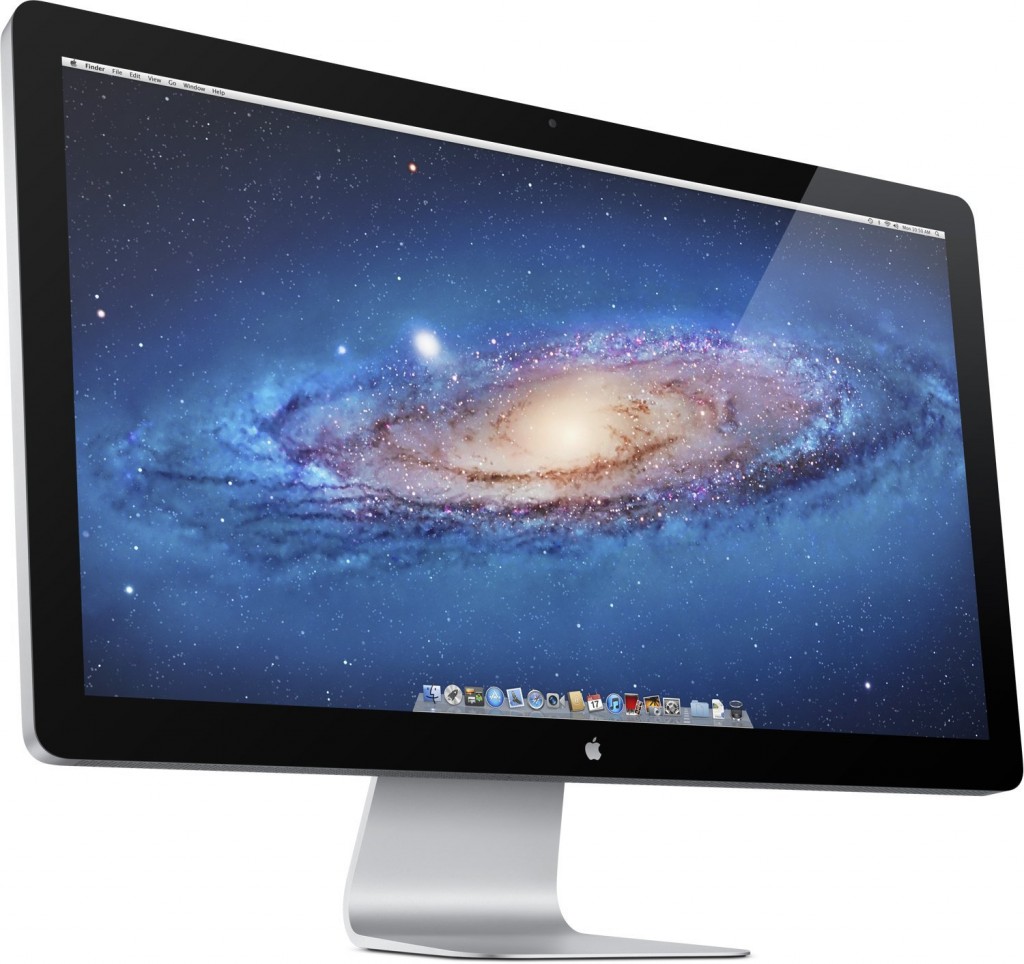
To use your iMac as a display in Target Display Mode, connect it to another Mac using the correct cable (see System Requirements below). Then press Command-F2 on the keyboard connected to your iMac. When you're done, press Command-F2 again.
System Requirements
You need the following to use Target Display Mode:
- A Mac notebook or desktop with a Mini DisplayPort or Thunderbolt port. If your Mac has Thunderbolt 3 (USB-C) ports, you can connect it using the Apple Thunderbolt 3 (USB-C) to Thunderbolt 2 Adapter.
- A Thunderbolt cable or a Mini DisplayPort to Mini DisplayPort cable
- A supported iMac with OS X v10.6.1 or later
See the list below for iMac models that support Target Display Mode, the type of cable you need to connect that model of iMac, and the kind of port you need on your other Mac.
iMac models you can use | Cable | Port you need on your other Mac |
iMac (27-inch, Late 2009) | Mini DisplayPort to Mini DisplayPort | Mini DisplayPort or Thunderbolt |
iMac (27-inch, Mid 2010) | Cd adapter for mac. Mini DisplayPort to Mini DisplayPort | Mini DisplayPort or Thunderbolt |
iMac (Mid 2011-Mid 2014) | Thunderbolt .Change milestone colors. This is a great opportunity to categorize your milestones by setting a color code that shows their status, for instance.Add effects. So I switched back to Value (Y) and increased the Max Scale value in the Axis Scale section from 4 to 5.After completing all the steps above, the resulting timeline should look like the one below. If you want to change the default colors generated by Keynote, you need to select the chart area, click on the bubble you want to recolor and use the Fill color indicator under the Style tab. While on the Style tab, you may also choose to apply some effects to the chart bubbles such as strokes or shadows. | Thunderbolt |

iMac (Retina 5K, 27-inch, Late 2014) and later iMac models can't be used as Target Display Mode displays.
Use Target Display Mode
Follow these steps to start using your iMac as a display:
- Make sure that your iMac is turned on, and the other Mac is logged in to a macOS user account.
- Connect the Mini DisplayPort or Thunderbolt cable between the two computers.
- Press Command-F2 on the keyboard of the iMac that you want to use as a display.
After you press Command-F2, your iMac displays the desktop from the connected Mac.
If Command-F2 doesn't work
If your iMac doesn't switch to Target Display Mode when you press Command-F2, check these things:
- Make sure that the iMac you're trying to use as a display supports Target Display Mode.
- Target Display Mode works only when your primary Mac is logged in to a macOS user account. For example, if your first Mac is at the FileVault login screen, pressing Command-F2 on your iMac does not enable Target Display Mode. You must first log in to your Mac (using a regular display, if necessary) before you can use an iMac in Target Display Mode.
- Make sure that you're pressing Command-F2 on the keyboard that's connected to the iMac you want to use as a display.
- In Keyboard System Preferences, if the checkbox is enabled for 'Use all F1, F2, etc. keys as standard function keys,' the key combination changes to Command-Fn-F2.
- Make sure that your Mini DisplayPort or Thunderbolt cable is connected to both computers.
- If you're currently logged in on the iMac you want to use as a display, try logging out to return to the login window. Then press Command-F2 again.
- Some older Apple keyboards and third-party keyboards might not allow Command-F2 to toggle display modes. If this happens, use the keyboard that came with your iMac to toggle Target Display Mode on and off.
- If your iMac is currently started up in Windows, it won't enter Target Display Mode. Target Display Mode isn't supported in Boot Camp.
Exit Target Display Mode
To leave Target Display Mode, press Command-F2 on the iMac keyboard again. Your iMac also exits Target Display Mode if you disconnect the cable that connects the two computers, or if you shut down or sleep either computer.
If the connected Mac goes into sleep mode, the iMac screen turns off until you wake the other computer, or until you take your iMac out of Target Display Mode.

Display options
You can control the brightness of your iMac display while it's in Target Display Mode from a connected Mac. Use the Displays pane of System Preferences on the connected Mac, or use the brightness keys on the keyboard of the connected Mac.
To hear audio from a connected Mac using the built-in speakers of your iMac, select the iMac from the Sound pane of System Preferences. You can also use the sound and media keys on the keyboard of the connected Mac to adjust volume and control playback of iTunes and other media.
Connect more than one display
You can use multiple iMac computers as displays as long as each iMac is directly connected to a Thunderbolt port on your computer using a ThunderBolt cable. Each iMac you connect as a display counts towards the maximum number of simultaneously connected displays that your Mac supports.
Avoid trying to connect (chain) iMac computers that are in Target Display Mode to each other. Each iMac in Target Display Mode should be connected directly to a Mini DisplayPort or ThunderBolt port directly on the Mac where you want to use it as a display.
Use apps on your iMac
Any apps that are open on your iMac remain open and active while your iMac is in Target Display Mode. For example, if you begin playing music in iTunes on your iMac and then activate Target Display Mode, iTunes doesn't pause on your iMac.
If you've set your iMac to automatically log out, apps are paused or closed when this happens but your iMac remains in Target Display Mode.
Monitors For Mac Book Pro
Connect devices to your Mac
Monitors For Mac Computers
A Mac that's connected to an iMac in Target Display Mode can't use the iMac computer's built-in camera, its USB, ThunderBolt, or FireWire ports, or devices connected to those ports. To use external devices with your Mac, connect these devices directly to the Mac that you want to use them with.