Mysql Workbench For Mac
- Mysql Workbench For Mac Download
- Install Mysql Workbench For Mac
- How To Download Mysql Workbench For Mac
- Download Mysql Workbench For Mac
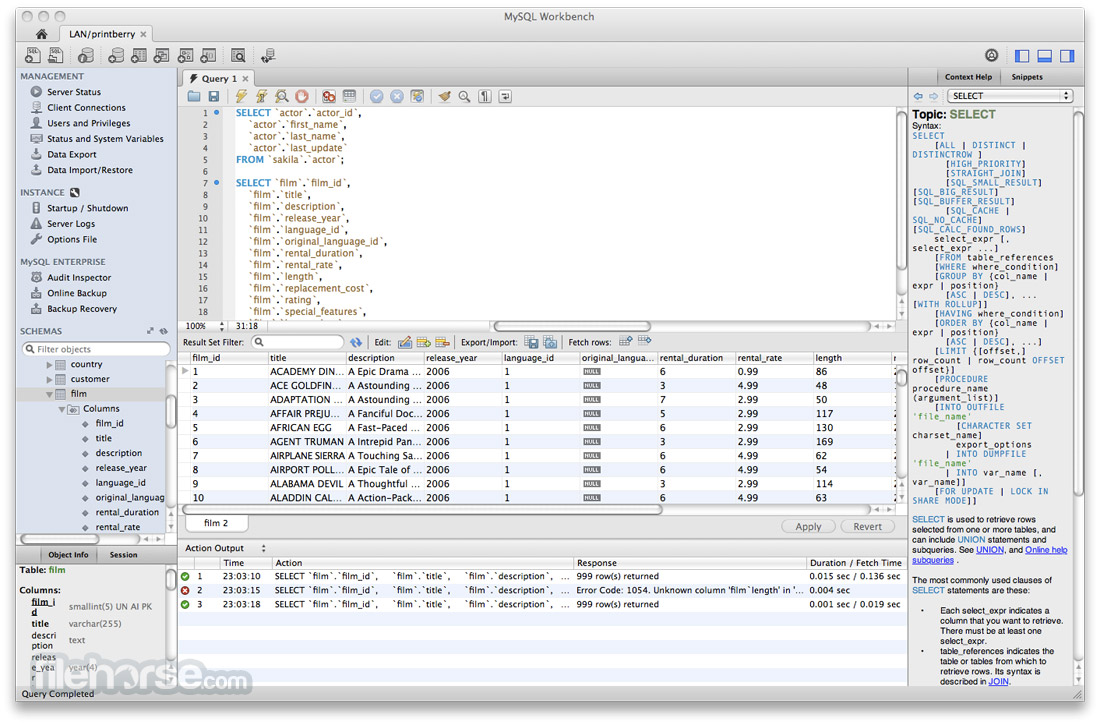
MySQL Workbench is available on Windows, Linux and Mac OS. MySQL Workbench simplifies database design and maintenance, automates time-consuming and error-prone tasks, and improves communication among DBA and developer teams. It enables data architects to visualize requirements, communicate with stakeholders, and resolve design issues before a. Jul 04, 2017 Create a Schema in your MySQL Workbench on Mac OS. Welcome to a quick and user-friendly guide to generating your first schema in MySQL. By the end of this blog, you will understand how to generate a MySQL schema. A schema is necessary for importing CSV files or JSON files because our end objective is uploading CSVs. MySQL Workbench for Mac is definitely an app for MAC that developed by Oracle Inc. We’re not straight affiliated with them. All trademarks, registered trademarks, product names and company names or logos that mentioned in here are the assets of their respective owners. Popular free Alternatives to MySQL Workbench for Windows, Linux, Mac, Web, Self-Hosted and more. Explore 25+ apps like MySQL Workbench, all suggested and ranked by the AlternativeTo user community. Popular Alternatives to MySQL Workbench for Windows, Mac, Linux, PortableApps.com, Eclipse and more tagged with Portable. Explore 6 apps like MySQL Workbench, all suggested and ranked by the AlternativeTo user community. MySQL Workbench is a unified visual tool for database architects, developers, and DBAs. MySQL Workbench provides data modeling, SQL development, and comprehensive administration tools for server configuration, user administration, backup, and much more. MySQL Workbench is available on Windows, Linux and Mac OS X.
MySQL Workbench is available on Windows, Linux and Mac OS. MySQL Workbench simplifies database design and maintenance, automates time-consuming and error-prone tasks, and improves communication.
MySQL Workbench for Mac 2019 – This app was created by Oracle and updated into the last version at May, 25th 2019. Download MySQL Workbench 8.0.16 for Mac from Apps4MAC.com. 100% Safe and Secure ✔ Powerful MySQL database visual editor for Mac.
MySQL Workbench for Mac for MAC Download
MySQL Workbench for Mac – Download Free (2019 Latest Version). Powerful MySQL database visual editor for Mac. Before you download the .dmg file, here we go some fact about MySQL Workbench for Mac that maybe you want to need to know.
| App Name | MySQL Workbench for Mac App |
| File Size | 106 MB |
| Developer | Oracle |
| Update | May, 25th 2019 |
| Version | MySQL Workbench 8.0.16 LATEST |
| Requirement | Mac OS X 10.10 or later |
Installing Apps on MAC
Most MacOS applications downloaded from outside the App Store come inside a DMG file. Like if you wanna download MySQL Workbench for Mac from this page, you’ll directly get the .dmg installation file into your MAC.
- First, download the MySQL Workbench for Mac .dmg installation file from the official link on above
- Double-click the DMG file to open it, and you’ll see a Finder window.
- Often these will include the application itself, some form of arrow, and a shortcut to the Applications folder.
- Simply drag the application’s icon to your Applications folder
- And you’re done: the MySQL Workbench for Mac is now installed.
- When you’re done installing: just click the “Eject” arrow.
- Then you can feel free to delete the original DMG file: you don’t need it anymore.
- Now, enjoy MySQL Workbench for Mac !
You don’t have to put your programs in the Applications folder, though: they’ll run from anywhere. Some people create a “Games” directory, to keep games separate from other applications. But Applications is the most convenient place to put things, so we suggest you just put everything there.
DMG files are mounted by your system, like a sort of virtual hard drive. When you’re done installing the application, it’s a good idea to unmount the DMG in Finder.
Recommended app to install: Sequel Pro for MAC Latest Version
Uninstall Apps on MAC
Removing MySQL Workbench for Mac apps is more than just moving them to the Trash — it’s completely uninstalling them. To completely uninstall a program on Mac you have to choose one of the options on below.
Method 1: Remove apps using Launchpad
Mysql Workbench For Mac Download
Another manual way to delete MySQL Workbench for Mac apps from your Mac is using the Launchpad. Here’s how it works:
- Click Launchpad icon in your Mac’s Dock.
- Find the MySQL Workbench for Mac that you want to delete.
- Click and hold the MySQL Workbench for Mac icon’s until it starts shaking.
- Click X in the top-left corner of the app icon.
- Click Delete.
Method 2: Delete MAC apps with CleanMyMac X
Now it’s time for the safe and quick app uninstalling option. There’s a safest way to uninstall MySQL Workbench for Mac on Mac without searching all over your Mac, and that’s by using CleanMyMac X.
- Launch CleanMyMac X and click on Uninstaller in the left menu.
- Select the , you can either uninstall it or, if it’s not acting as it should, you can perform an Application Reset.
- Click on Uninstall or choose Application Reset at the top.
- Now that the application cleanup is complete, you can view a log of the removed items, or go back to your app list to uninstall more.
- And you’re done to remove MySQL Workbench for Mac from your MAC!
MySQL Workbench for Mac Related Apps
Here we go some list of an alternative/related app that you must try to install into your lovely MAC OSX
Disclaimer
This MySQL Workbench for Mac .dmg installation file is completely not hosted in our Server. Whenever you click the “Download” button on this page, files will downloading straight from the owner sources Official Website. MySQL Workbench for Mac is definitely an app for MAC that developed by Oracle Inc. We’re not straight affiliated with them. All trademarks, registered trademarks, product names and company names or logos that mentioned in here are the assets of their respective owners. We are DMCA-compliant and gladly to work with you.
Chapter 3. Installing and Launching MySQL Workbench
Table of Contents
- 3.1. Hardware Requirements
- 3.2. Software Requirements
- 3.3. Starting MySQL Workbench
- 3.3.1. Installing MySQL Workbench on Windows
- 3.3.2. Launching MySQL Workbench on Windows
- 3.3.3. Uninstalling MySQL Workbench on Windows
- 3.3.4. Installing MySQL Workbench on Linux
- 3.3.5. Launching MySQL Workbench on Linux
- 3.3.6. Uninstalling MySQL Workbench on Linux
- 3.3.7. Installing MySQL Workbench on Mac OS X
- 3.3.8. Launching MySQL Workbench on Mac OS X
- 3.3.9. Uninstalling MySQL Workbench on Mac OS X
- 3.4. Activation Procedure (Commercial Version)
MySQL Workbench is available for the following platforms:
Binary distributions of MySQL Workbench are avaliable for the above platforms. Source code distributions are also available as a tar.gz package, or an RPM package.
The following sections explain the installation process for each of these platforms.
MySQL Workbench requires a current system to run smoothly. The minimum hardware requirements are:
CPU: Intel Core or Xeon 3GHz (or Dual Core 2GHz) or equal AMD CPU
Cores: Single (Dual/Quad Core is recommended)
RAM: 4 GB (6 GB recommended)
Graphic Accelerators: nVidia or ATI with support of OpenGL 1.5 or higher
Display Resolution: 1280×1024 is recommended, 1024×768 is minimum.
The following operating systems are officially supported:
Windows 7 (64-bit, Professional level or higher)
Mac OS X 10.6.1+
Ubuntu 9.10 (64bit)
Ubuntu 8.04 (32bit/64bit)
For convenience the following builds are also available:
Windows XP SP3, Vista
Mac OSX (10.5 and 10.6) Intel
Ubuntu 8.04 (i386/x64)
Ubuntu 9.04 (i386/x64)
Fedora 11 (i386/x64)
MySQL Workbench also has the following general requirements:
The Microsoft .NET 3.5 Framework.
Cairo 1.6.0 or later
glib-2.10
libxml-2.6
libsigc++ 2.0
pcre
libzip
For convenience the Windows libraries are available as the download “Dependencies for Compiling in Windows”.
On start up, the application checks the OpenGL version and selects between software and hardware rendering. To determine the rendering method that is being used, open the Help menu and choose the System Info submenu.
- 3.3.1. Installing MySQL Workbench on Windows
- 3.3.2. Launching MySQL Workbench on Windows
- 3.3.3. Uninstalling MySQL Workbench on Windows
- 3.3.4. Installing MySQL Workbench on Linux
- 3.3.5. Launching MySQL Workbench on Linux
- 3.3.6. Uninstalling MySQL Workbench on Linux
- 3.3.7. Installing MySQL Workbench on Mac OS X
- 3.3.8. Launching MySQL Workbench on Mac OS X
- 3.3.9. Uninstalling MySQL Workbench on Mac OS X
The procedure for launching MySQL Workbench depends on the platform. Generally, there are two ways to launch MySQL Workbench from the command line and from the graphical user interface of the host operating system. Using the command-line launching facility is useful when you want to customize some aspects of the way MySQL Workbench operates. Launching MySQL Workbench for each of the supported platforms is described in the following sections.
In addition to platform-specific command line options, MySQL Workbench has the following command line options:
--admin- Launch MySQL Workbench and load the server instance specified.instance--query- Launch MySQL Workbench and load the connection specified.connection--model- Launch MySQL Workbench and load the model specified.modelfile--script- Launch MySQL Workbench and run the script specified.script--run- Launch MySQL Workbench and run the code snippet specified.code--quit-when-done- quits MySQL Workbench after --script or --run finishes.
MySQL Workbench may be installed using the Windows installer file or it may be installed manually from a ZIP file.
Best Buy customers often prefer the following products when searching for Best Mac Keyboards. 'Great for my son.I got this keyboard for my mac to switch out one of my knockoff brand keyboards and the quality as well as the feel to it when writing papers or emails is. Wireless Keyboard and Mouse Combo, Kang RUI 2.4G USB Full Size Ultra Slim Compatible with MAC PC Laptop Ultra-Thin Laptop Desktop, Available for Windows OS Android DPI800/ Mute (Silvery-2). Keyboard for mac laptop. Get Magic Keyboards, trackpads and mice for Mac. Shop sensor switches and keyboard cases for your Mac. Buy online with fast, free shipping. Oct 18, 2019 Mac keyboard shortcuts. By pressing certain key combinations, you can do things that normally need a mouse, trackpad, or other input device. To use a keyboard shortcut, press and hold one or more modifier keys and then press the last key of the shortcut. For example, to use Command-C (copy), press and hold the Command key, then the C key, then. When I was in the windows environment the most important thing was the monitor and then the keyboard. Once I jumped in the MAC ecosystem, the most uncomfortable piece of hardware was the iMac keyboard, flat, no input from the keys, unlit, small, and very awkward.
Installing MySQL Workbench Using the Installer
MySQL Workbench can be installed using the Windows Installer (.msi) installation package. The MSI package bears the name mysql-workbench-, where version-win32.msiversion indicates the MySQL Workbench version number.
Installing MySQL Workbench using the installer requires either Administrator or Power User privileges. If you are using the ZIP file without an installer, you do not need Administrator or Power User privileges.
Improving the MySQL Installation Wizard depends on the support and feedback of users. If you find that the MySQL Installation Wizard is lacking some feature important to you, or if you discover a bug, please report it in our bugs database. To do this use the Report a Bug option under the Help menu.
To install MySQL Workbench, right-click the MSI file and select the Install option from the pop-up menu, or simply double-click the file.
In the Setup Type window you may choose a
CompleteorCustominstallation. To use all features of MySQL Workbench choose theCompleteoption.Unless you choose otherwise, MySQL Workbench is installed in
C:, where%PROGRAMFILES%MySQLMySQL Workbench 5.1edition_type%PROGRAMFILES%is the default directory for programs for your locale. The%PROGRAMFILES%directory may beC:Program FilesorC:programme.
Installing from the ZIP File
If you are having problems running the installer, as an alternative, you can download a ZIP file without an installer. That file is called mysql-workbench-. Using a ZIP utility, unpack it to the directory of your choice. You may also want to create a shortcut on your desktop or the quick launch bar. version-win32.zip
To install using the ZIP file, download the ZIP file to a convenient location and decompress the file. You can place the resulting directory anywhere on you system. You do not need to install or configure the application before using it.
To start MySQL Workbench on Windows select Start, Programs, MySQL and then select MySQL Workbench.
You may also start MySQL Workbench from the command line. To view the available command-line options, issue the command MySQLWorkbench -help more from the MySQL Workbench installation directory. You will see the following output:
The MySQL Workbench version number is displayed followed by a usage message and then the options. Use the -swrendering option if your video card does not support OpenGL 1.5. The -version option can be used to display the MySQL Workbench version number. The -grtversion can be used to display the GRT shell version number. The other options are self-explanatory.
When using command-line options that display output to a console window, namely -help and -version, be sure that you pipe the output through the more command otherwise nothing will be displayed.
The method for uninstalling MySQL Workbench will depend on how you install MySQL Workbench in the first place.
Rmoving MySQL Workbench when installed Using the Installer
To uninstall MySQL Workbench, open the Control Panel and Choose Add or Remove Programs. Find the MySQL Workbench entry and choose the button. Doing this will remove MySQL Workbench.
Any modules added to the
C:Program FilesMySQLMySQL Workbenchdirectory will not be deleted.versionmodules
It is not possible to remove MySQL Workbench from the command line if you have installed MySQL Workbench using the installer. Although you can manually remove some of the compoentns There is no command-line option for removing MySQL Workbench.
Removing the MySQL Workbench directory manually will not remove all the files belonging to MySQL Workbench.
When installed from a ZIP file
If you installed MySQL Workbench using a ZIP file, to remove MySQL Workbench you can just delete the MySQL Workbench directory.
If you installed any additional modules within the modules directory and you want to keep them, make sure you copy those modules to a different directory before deleting the MySQL Workbench directory.
There are several binary distributions of MySQL Workbench available for Linux. These include:
Fedora 10 amd64 (RPM)
Ubuntu 8.04 i386 (DEB)
Ubuntu 8.10 amd64 (DEB)
In addition to the binary distributions, it is also possible to download the MySQL Workbench source code as a tar.gz or RPM package.
Check the MySQL Workbench download page for the latest packages.
The procedure for installing on Linux depends on which Linux distribution you are using.
Installing DEB packages
On Ubuntu, and other systems that use the Debian package scheme, you can install MySQL Workbench using a command such as:
Note that package.debmysql-workbench-oss-, where version_i386.debversion is the MySQL Workbench version number.
You may be warned that certain libraries are not available, depending on what you already have installed. Install the required libraries and then install the MySQL Workbench package again.
Installing RPM packages
On RedHat-based systems, and other systems using the RPM package format, MySQL Workbench can be installed by a command such as:
Again, note that package.rpmmysql-workbench-oss-, and version-1fc10.x86_64.rpmversion is the MySQL Workbench version number.
Once MySQL Workbench has been installed it can be launched by selecting Applications, Programming, MySQL Workbench from the main menu.
MySQL Workbench can also be launched from the command line on Linux. Type the command:
This will display the available command-line options:
The procedure for uninstalling MySQL Workbench on Linux depends on the packe you are using.
Uninstalling DEB packages
For Debian packages the command is:
This does not remove the configuration files. If you wish to also remove the configuration files use:
Install Mysql Workbench For Mac
Uninstalling RPM packages
To uninstall RPM packages use:
This does not remove the configuration files.
MySQL Workbench is available for Mac OS X and is distributed as a DMG file. The file is named mysql-workbench-oss-, where version-osx10.5-i686.dmgversion is the MySQL Workbench version.
To install MySQL Workbench on Mac OS X, simply download the file. Double-click the downloaded file. You will be presented with the installation screen:
Figure 3.1. MySQL Workbench Mac OS X Installation Screen
Drag the MySQL Workbench icon onto the Application icon as instructed. MySQL Workbench is now installed.
You can now launch MySQL Workbench from the Applications folder.
To launch MySQL Workbench on Mac OS X, simply open the Applications folder in the Finder, then double-click MySQL Workbench.
It is also possible to start MySQL Workbench from the command line:
How To Download Mysql Workbench For Mac
A model file must be specified.
Download Mysql Workbench For Mac
To uninstall MySQL Workbench for Mac OS X, simply locate MySQL Workbench in the Applications folder, right-click, and select Move to Trash. The application is uninstalled.