Format External Hard Drive For Mac And Pc
- Macs can easily read PC-formatted hard disk drives. Writing to them, however, is a different story. If you've switched to the Mac, welcome aboard. Your old external Windows PC drive will work great on the Mac. Apple has built OS X Yosemite and some previous OS X releases with the ability to read from those disks just fine. If you're using such a drive and you'd like to write new data.
- If you simply want to have a data drive that can be shared across Mac and PC just format the drive in ExFAT. External drives come partitioned, you simply want to reformat it with an ExFAT partition. Just make sure you are using SP1 or later in Vista to enable ExFAT.
- Windows PC and Mac use different filesystems. The Windows uses NTFS and Mac uses HFS. They are incompatible with each other. So, if you want to use an external hard drive on both Windows and Mac, you need to format it to a filesystem that is compatible with Windows PC and Mac.
- Format External Hard Drive For Mac And Pc On Windows 7
- Format External Hard Drive For Mac And Pc Partition
- Format External Hard Drive For Mac
- Format Wd External Hard Drive For Mac And Pc
Format External Hard Drive For Mac And Pc On Windows 7
Click the icon for your external hard drive in the sidebar on the left. Click the Erase tab along the top of the window. Snagit for macbook air. From the Volume Format menu, choose Mac OS Extended (Journaled). Enter a name for the external hard drive in the Name field.
You can format an external hard drive or USB so that it’s compatible for both your Mac and your Windows PC.
Without formatting the drive, you won’t be able to use your hard drive across different operating systems.
When you do format a hard drive, you’ll be able to access your data, media and files across any operating system.
Format External Hard Drive For Mac And Pc Partition
This is extremely handy if you use a Mac and Windows operating system because you’ll be able to cross between both platforms and use your USB on anyone.
Remember that everything gets wiped off your hard drive when you format it, so you’ll need to back it up before you follow the steps down below.
Let’s get started…
Format Using MS-DOS FAT
The good thing about changing the format to FAT is that it works with all Macs and PCs, plus it uses less memory and it works faster.
The negatives of using Fat is that it can’t contain files bigger than 4GB.
To format your hard drive to FAT on Mac:
- Click on Spotlight and open Disk Utility
- Click on the USB drive you want to format
- Click the Erase tab at the top
- Choose the MS-DOS (FAT) in the format drop down
- Click Erase and follow the prompts
- Your external hard drive to now formatted
Remember that once you’ve formatted your hard drive, it will get wiped so you’ll need to backup the content on your external drive.
If you’re using a USB, you can simply drag its contents to a folder in your PCs hard drive and upload it back to your external hard drive once it has been formatted.
Format Using ExFAT
The good about formatting to exFAT is that it can handle unlimited file sizes and partition sizes.
The cons of exFAT are that you can only use it with Mac OS X 10.6.5 or newer and your Windows PC needs to be either Windows Vista SP1 or Windows 7 and above.
Another problem with exFAT is that it’s extremely slow so moving files to this drive will take several minutes.
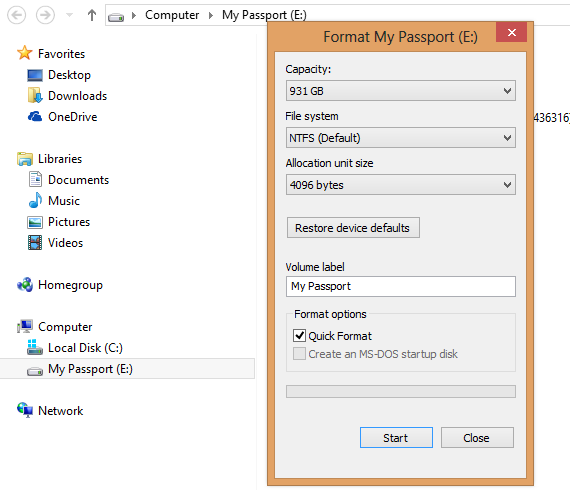
To Format using exFAT on Windows PC:
- Plug in your external hard drive in Windows PC
- Open File Explorer
- Right-click on your external drive and select Format
- Choose exFAT in the menu
- Click Start
- Your external drive is now formatted
After formatting your drive, it’s now compatible for both your Mac and your Windows PC.
Fat is the best option to use because you can use it on any OS, however, it can only contain 4GB which may not be enough for you.
Format External Hard Drive For Mac
If you have a new OS system, I’d definitely recommend exFAT because it can contain unlimited data.
Format Wd External Hard Drive For Mac And Pc
Bottom Line
Going into Disk Unity then clicking the erase tab is the quickest way to format an external drive on your MAC.
If you have any questions or you’re having any problems, comment down below and I’ll help you further.
If you liked this article, share it and subscribe to the email newsletter.